
AVA® Co-Driver displays your AVA® customer data in a side panel while you work in DeskIt and other desking and finance platforms. When a customer's name, phone number, or email appears on screen and matches an AVA® customer profile, Co-Driver automatically surfaces that customer's credit snapshot, ID verification, trade summary, personal information, and notes. Without requiring you to switch tabs or log into the AVA® Portal.
You can also manually search any AVA® lead from the side panel from any CRM or software when there's no automatic match.
Why This Setup Matters
Co-Driver eliminates the most common friction point in deal structuring and finance. Having to leave your workflow to check whether AVA® already has the customer data you need. With Co-Driver installed, your team can:
• See if soft-pull credit data already exists before authorizing a hard inquiry
• Reference verified trade payoffs and lien balances instead of estimating
• Download credit reports and ID verification PDFs for lender submissions in seconds
• Stay in the desking software they already use, all day
Requirements
Before starting, ensure you have:
• Google Chrome browser or Microsoft Edge Add-On installed
• Active AVA® login credentials
• Permission to install browser extensions on your computer (some dealership IT policies restrict this, check with your IT admin if needed)
Setup Instructions
Step 1, Install the extension
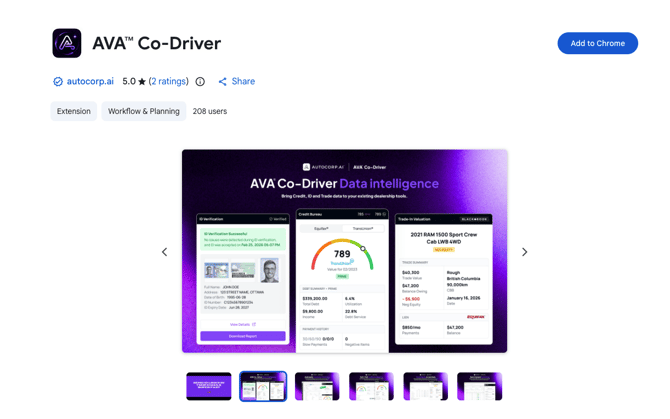
Google Chrome Users: Open Google Chrome and navigate to the Chrome Web Store. Search for "AVA® Co-Driver" and click "Add to browser." When prompted, click "Add extension."
Microsoft Edge Users: Open Microsoft Edge and navigate to the Microsoft Edge Add-Ons Store. Search for "AVA® Co-Driver" and click "Add to Chrome." When prompted, click "Add extension."
Step 2. Pin Co-Driver to your toolbar

Click the puzzle-piece icon in the top-right corner of the browser. Find AVA® Co-Driver in the list and click the pin icon next to it. Co-Driver will now appear as an icon in your browser toolbar.
Step 3. Log in
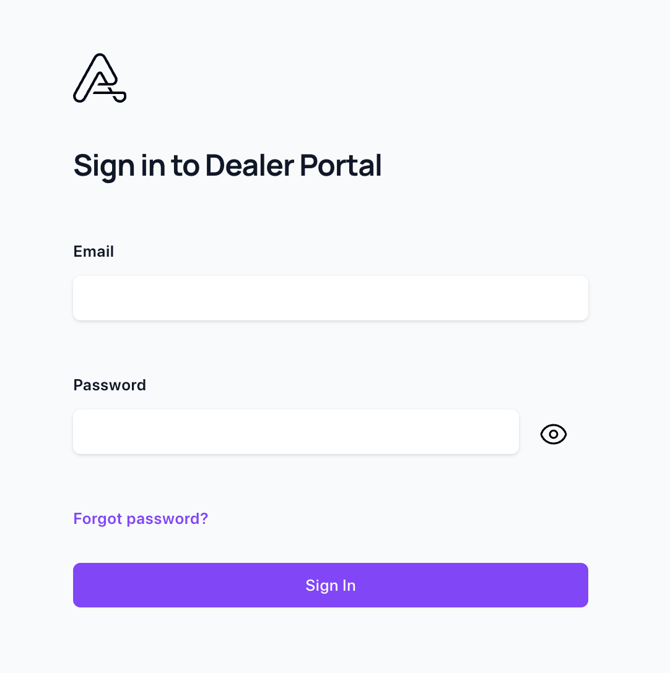
Click the Co-Driver icon in your browser toolbar. The side panel will open. Enter your AVA® portal login credentials. The same ones you use to access the AVA® Portal. You only need to do this once.
Step 4, Open your supported software
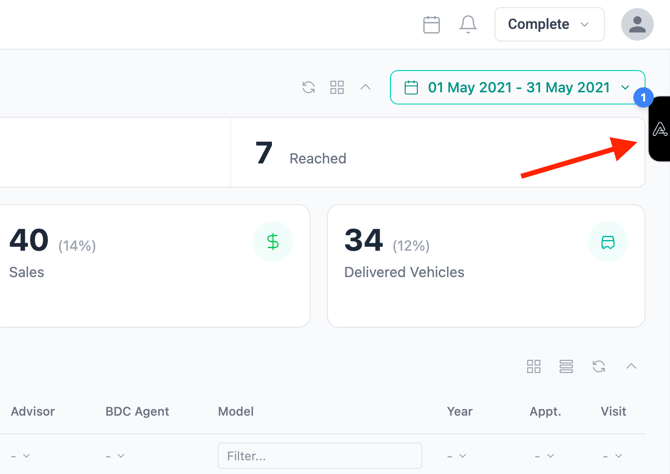
Open your CRM, desking or F&I software in browser. Co-Driver will be active in the background, ready to match AVA® profiles to leads on screen.
Step 5. Try your first match
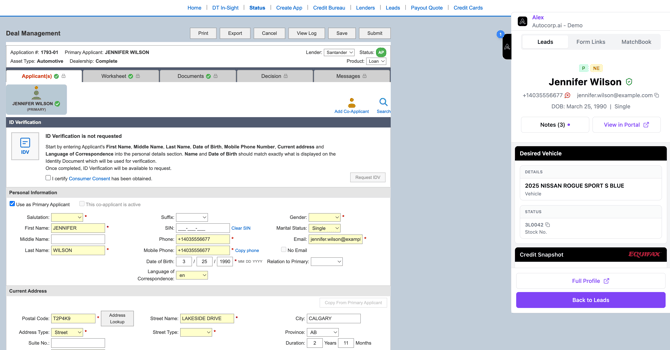
Click on any lead in your desking software. In DealerTrack or DeskIt, if you click on a customer that matches to an AVA® customer profile name, phone, or email, Co-Driver will automatically open the side panel and display the customer’s AVA® data within seconds.
Confirm Setup
After setup, you should see:
• The Co-Driver icon pinned to your browser toolbar
• The side panel opens when you click the icon
• Your AVA® customer data appears when you click on a matching lead in your supported software
• A small number badge on the Co-Driver icon when new leads come into AVA®
Using Co-Driver Day-to-Day
Auto-match in DeskIt or DealerTrack When you click on a lead in Deskit or DealerTrack, Co-Driver looks at the customer's name, phone, or email visible on the page. If it matches an AVA® customer profile, the side panel opens and automatically displays that customer's information.
Manual search
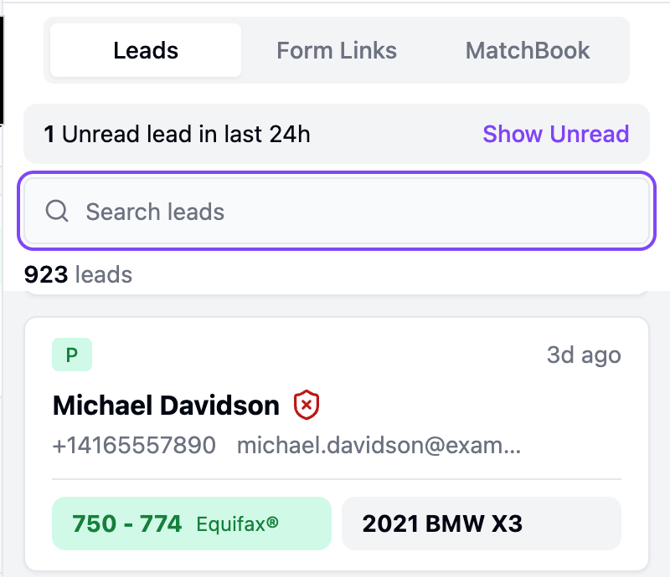
Even when there's no automatic match, you can search any lead from the Co-Driver side panel while working out of any software. Type a name, phone, or email into the search bar to find any AVA® customer.
Browser notifications
Co-Driver sends browser notifications when new leads come into your AVA® account. You can also see an unread-leads counter on the Co-Driver icon in your browser toolbar.
Quick actions
Each piece of customer data in the Co-Driver side panel has a one-click copy icon. Use this to quickly transfer information into your desking or F&I software.
Multi-portal users
If you have access to multiple AVA® portals (for example, separate prime and subprime brands), Co-Driver displays data from whichever portal you're currently logged into in the AVA® Portal. To switch, change portals in the AVA® Portal and Co-Driver will mirror automatically.
Best Practices
• Keep browser open during your work day. Co-Driver stays active in the background
• Check the Co-Driver side panel before authorizing any new credit pull. Soft-pull data may already exist
• Use the manual search anytime you need to look up a customer, instead of opening the AVA® Portal
• Encourage your desk and F&I managers to install Co-Driver on Day 1. Adoption across the team is what unlocks the most value
What Co-Driver Does NOT Do
To set expectations clearly:
• Co-Driver does not pull credit (soft or hard). It displays credit data already captured by AVA®
• Co-Driver does not push data into DealerTrack, DeskIt, or any third-party software
• Co-Driver does not require any changes to your existing software or workflow
• Co-Driver does not currently support Firefox or Safari
• Co-Driver is not currently translated into French (in development)
Pricing
AVA® Co-Driver is included with every active AVA® subscription at no additional cost.
To unlock the full power of Co-Driver, we recommend your dealership be on the Growth package or higher, so your team can access credit, ID, and trade data directly in the side panel.
Need Help? Our team is just one click away.
💬 Chat inside your portal
📞 1 (877) 255-8627