
Important: In order to add and remove users you need to be an Admin
To manage portal users in the Autocorp.ai Portal, navigate to Settings > Users, where Admins can add new users, reset expired passwords, and remove users from the access list.
How do I add a new user?
Admins can add a new user by entering their email address on the Users settings page, selecting an access level, and clicking + Add User. The new user will receive an email to complete their account setup.
-
Sign into the portal https://portal.autocorp.ai/
-
Select Settings
-
Select Users
-
On the users page enter in the email address for the user you want to add
-
Select their access level — Member or Admin:
- Member: Can view and interact with portal content but cannot manage users or change account settings.
- Admin: Has full access, including the ability to add and remove users and manage portal settings.
-
Click + Add User
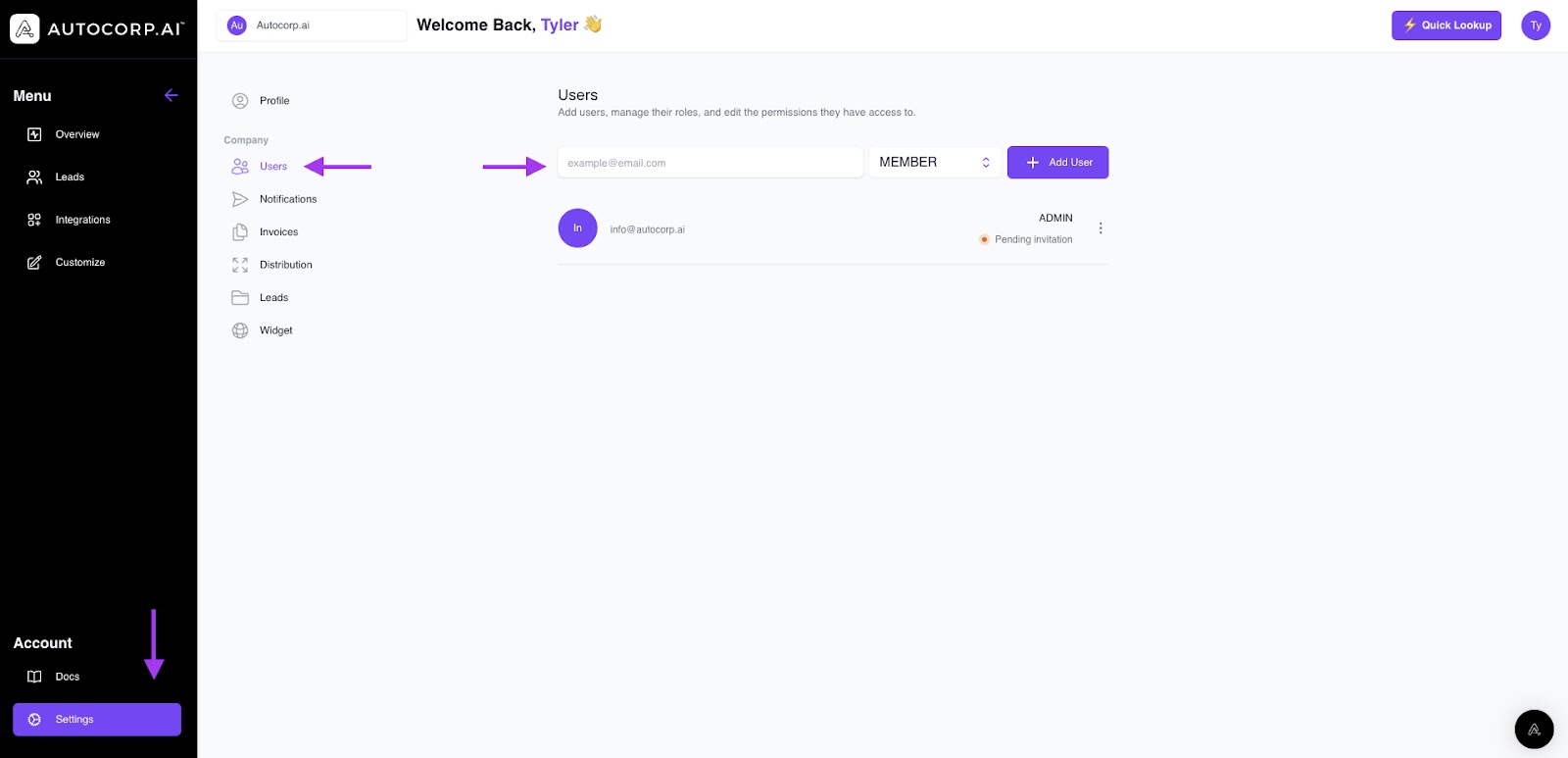
Once the user is added, they will get an email to complete the setup of their account. They will be asked to create a new password, enter in their name and position.
Until the user completes setting up their account they will show as Pending invitation in their user card.
Note: Set up your account as soon as possible — the temporary password expires after a short period. If it has already expired, see the Temporary password expired section below.
What do I do if the temporary password has expired?
In some cases users do not create their portal account right away, and this can result in an expired temporary password when they do go to set up the account.
To get the user a new password follow the steps below
-
Sign into the portal https://portal.autocorp.ai/
- Select Settings.
- Select Users.
- Select the ⋯ (three-dot menu) on their user card.
- Select Reset Password.
Select the ⋯ (three-dot menu) on their user card
Select “Reset Password”
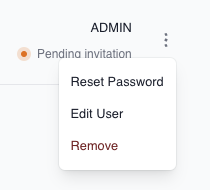
A new password will be emailed to that user and they can move forward with creation of their Portal account.
How do I remove a user?
An Admin can remove a user at any time by selecting Remove from the three-dot menu on the user's card in Settings > Users. Removing a user immediately revokes their portal access.
At any time an Admin for the portal can remove a user from their Portal’s access list.
-
Sign into the portal https://portal.autocorp.ai/
-
Select Settings
-
Select Users
-
Select the ⋯ (three-dot menu) on their user card
-
Select “Remove”
Note: Removing a user immediately revokes their access to the portal. Any content or data they created will remain in the portal and will not be deleted.
Need help adding or removing a user?Reach out to us at support@autocorp.ai for assistance or for any further questions, we are always happy to help!