
Follow this step-by-step guide to install the AVA™ widget on your dealership website quickly and correctly.
Before you begin: Make sure you have access to your dealership's website HTML or CMS, and that you are logged in to the AVA™ Dealer Portal.
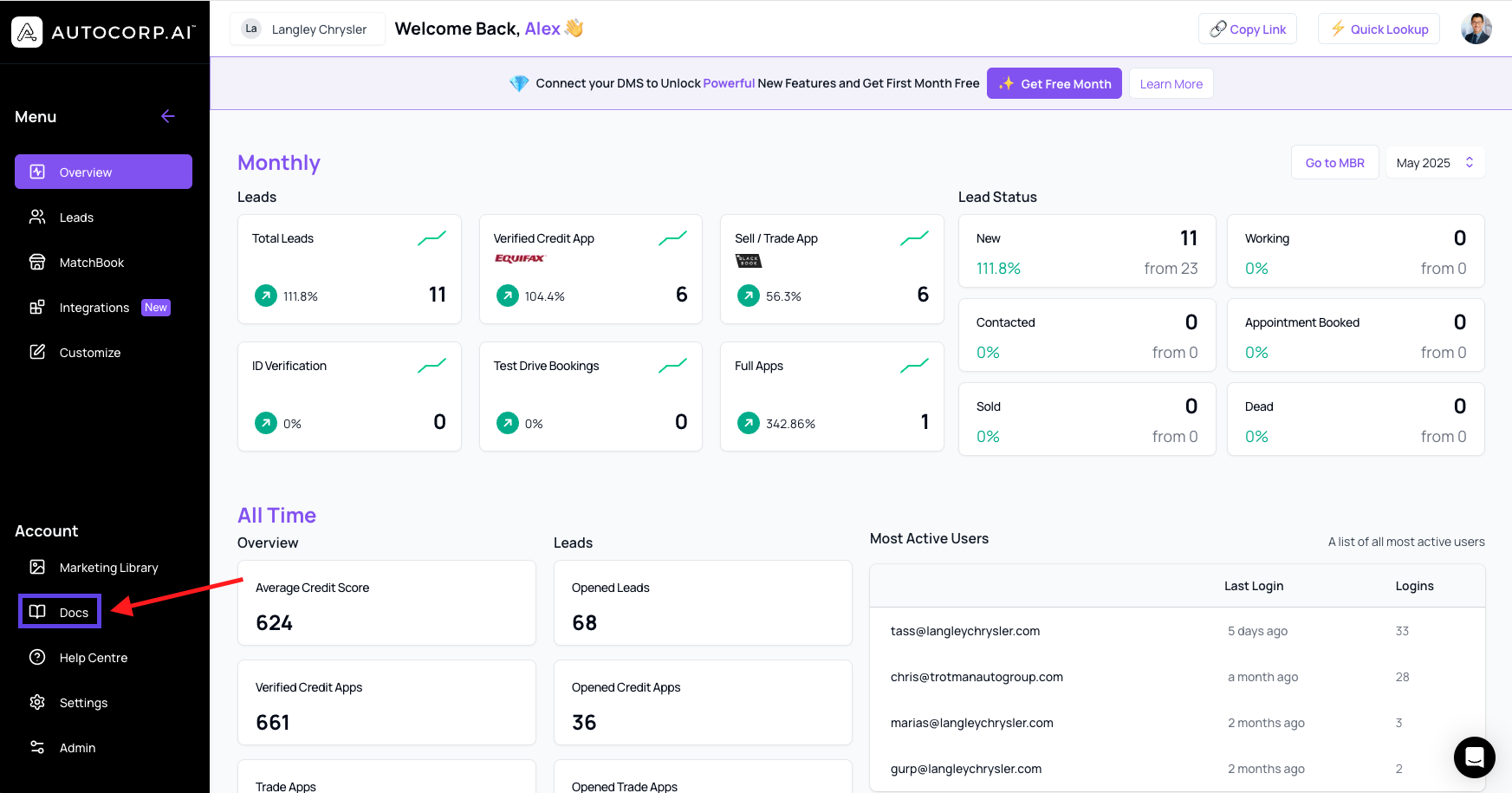
Go to the Docs Page
Log in to the AVA™ Dealer Portal and click “Docs” in the left-hand navigation bar.
Select Your Widget Type
Choose the version that fits your business:
-
General – for standard automotive dealerships
-
Powersports – optimized for bikes, ATVs, and more
-
RV – designed for recreational vehicle dealerships
Copy Your Unique Script Tag
Under the installation instructions, grab the global <script> tag with your unique widget Id.
Paste it inside the <head> tag of your website’s HTML, ideally before the closing </head> tag. This script only needs to be added once per website.
Already installed the script? Skip to Step 4 — Choose Your CTA Type.
Choose Your CTA Type
Decide how the widget should appear on your site. Here are your options:
| CTA Type | Best Use Case |
| banner | Sticky banner across the top or bottom of your site |
| inline | Embedded in the middle of a landing page |
| inlineSidebar | Placed in a sidebar or right-rail for additional visibility |
| oemBanner | OEM-specific layout, often used for manufacturer programs |
| oemInline | Embedded in OEM-branded sections of your site |
| bannerHero | A large-format banner placed in the homepage hero section |
| inlineHero | Embedded in the homepage hero text or image block |
| embed | Fully embedded form for a seamless native experience |
| button | A simple call-to-action button that triggers the widget |
| customButton | Trigger the widget with your own custom button or element using JS |
Add the CTA Code to Your Site
Paste this snippet where you want the widget to show up:
<div class="AskAva-cta" data-product="creditTool" data-type="banner"></div>
Replace data-type="banner" with the CTA type you selected from the table above (e.g., data-type="inline" or data-type="button"). The data-product attribute and AskAva-cta class value should remain unchanged.
Need More Customization?
For advanced styling, targeting rules, or custom behavior, reach out to your Client Success Manager to schedule a call. You can also contact our support team at support@autocorp.ai.
Still Have Questions?
📞 1 (877) 255-8627