
The Google Analytics 4 (GA4) integration connects your GA4 property with AVA™ Portal to deliver detailed, event-level analytics for your dealership website. This article explains how to install GA4, configure event tracking, and send events to a specific Measurement ID.
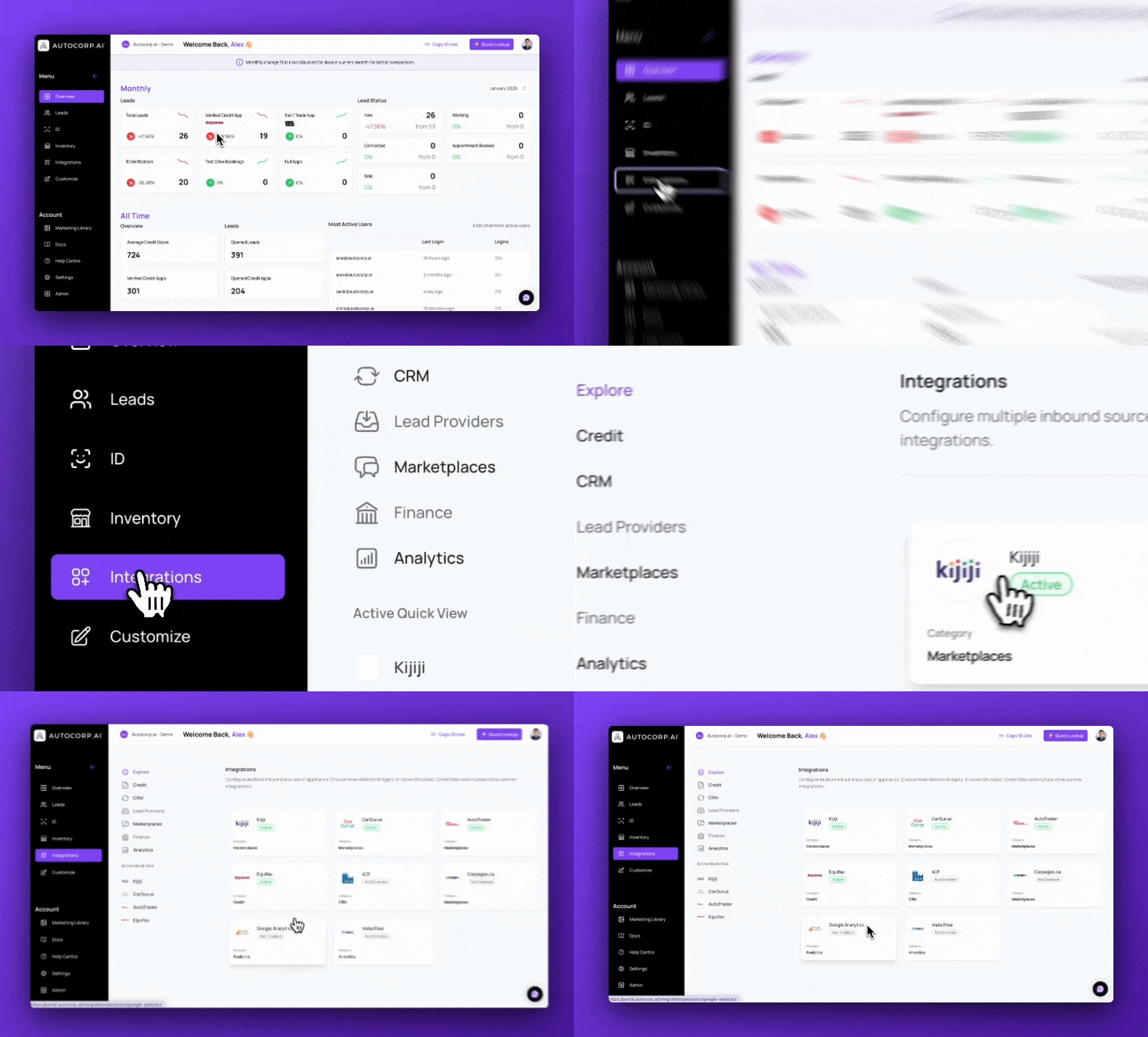
Setting up GA4 for your dealership is straightforward. Simply ensure GA4 is installed correctly on your site, and AVA™ will handle the rest.
For ensuring that GA4 is installed properly on your site please refer to the google documentation here: https://developers.google.com/tag-platform/gtagjs
Please note that when there is one or more GTAG ID (G-XXXXXX) and/or GTM IDs (GTM-XXXXXX) installed, the GTAG ID is prioritized. Please follow the steps for using AVA with GTAG ID + GTM ID. See Sending Events to a specific Measurement ID (GA4/GTM).
Commonly the following is setup on sites:
<script async src="https://www.googletagmanager.com/gtag/js?id=TAG_ID"></script>
If this snippet is already present on your site, add the following configuration block immediately after it:
<script>
window.dataLayer = window.dataLayer || [];
function gtag(){dataLayer.push(arguments);}
gtag('js', new Date());
gtag('config', 'TAG_ID');
</script>
Sending Events to a specific Measurement ID (GA4/GTM)
If you have more than one Measurement ID installed on your site and you would like to send events to a specific ID, please use the following script and install it in the <head> of the website. Be sure to add in your widgetId.
Use the send_to event parameter to specify the Measurement ID you want to send events to.
Not sure which widgetId to use? Contact support@autocorp.ai and we would be more than happy to assist.
Code Example:
<script>
  (function() {
    function registerEvents() {
      askAva.events({
        widgetOpened: () => {
         window.gtag('event', 'widget_opened', {
           send_to: '<GTM-XXXXXX or G-XXXXXXX>',
                 // Add your own custom event parameters here
          custom_param: ‘custom_value’
           });
        },
        widgetClosed: () => {
         window.gtag('event', 'widget_closed', {
            send_to: '<GTM-XXXXXX or G-XXXXXXX>',
                // Add your own custom event parameters here
          custom_param: ‘custom_value’
           });
        },
        userEngaged: () => {
         window.gtag('event', 'user_engaged', {
            send_to: '<GTM-XXXXXX or G-XXXXXXX>',
                // Add your own custom event parameters here
          custom_param: ‘custom_value’
           });
        },
        creditToolSubmit: () => {
         window.gtag('event', 'credit_tool_submitted', {
            send_to: '<GTM-XXXXXX or G-XXXXXXX>',
                // Add your own custom event parameters here
          custom_param: ‘custom_value’
           });
        },
        tradeToolSubmit: () => {
         window.gtag('event', 'trade_tool_submitted', {
            send_to: '<GTM-XXXXXX or G-XXXXXXX>',
                // Add your own custom event parameters here
          custom_param: ‘custom_value’
           });
        },
        creditReportReceived: () => {
         window.gtag('event', 'credit_report_received', {
            send_to: '<GTM-XXXXXX or G-XXXXXXX>',
                // Add your own custom event parameters here
          custom_param: ‘custom_value’
           });
        },
        creditAppSubmit: () => {
    window.gtag('event', 'credit_app_submitted', {
            send_to: '<GTM-XXXXXX or G-XXXXXXX>',
                // Add your own custom event parameters here
          custom_param: ‘custom_value’
           });
        },
        partialLeadSubmit: () => {
   window.gtag('event', 'partial_lead_submitted', {
            send_to: '<GTM-XXXXXX or G-XXXXXXX>',
                // Add your own custom event parameters here
          custom_param: ‘custom_value’
           });
        },
      })
    }

    window.askAva = (window.askAva || {});
    window.askAva.onload = registerEvents;

    const sc = document.createElement('script');
    sc.type = "application/javascript";
    sc.src = "https://assets.askava.ai/v2/api.js?widgetId=<widgetId>";
    document.head.appendChild(sc);
  })()
</script>
For more information on GTM please see: https://developers.google.com/analytics/devguides/collection/ga4/tag-options#gtagjs
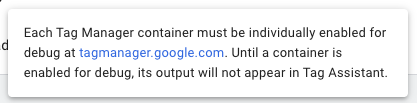
If Google Tag Manager is not populating results as expected, enable Preview and Debug mode for each relevant container.
This is set individually for each Tag Manager container and can be set at tagmanager.google.com
Events Fired from AVA
-
widgetOpened: The consumer opened the modal (engaged with a CTA), or an embedded form loaded on the page
-
widgetClosed: The consumer closed the modal (does not fire for embedded forms)
-
userEngaged: The consumer interacted with the form (changed inputs)
-
partialLeadSubmit: The consumer completed a portion of the app and their existing information was saved
-
creditToolSubmit: The consumer submitted their personal identifiable information in order to retrieve their credit score
-
creditAppSubmit: The consumer filled out and submitted the additional information for a “Credit App”
-
tradeToolSubmit: The consumer submitted their personally identifiable information (PII) and vehicle information to retrieve a Canadian Black Book (CBB) trade-in value for their vehicle
-
creditReportReceived: The consumer successfully received their credit report