
Overview
Your whole team now lives on one page: Settings › Users. From there you can control who can sign in to the AVA® Portal and who receives new leads by email or text.
The separate Notifications tab has been retired. If you have it bookmarked, the old link now takes you to Users.
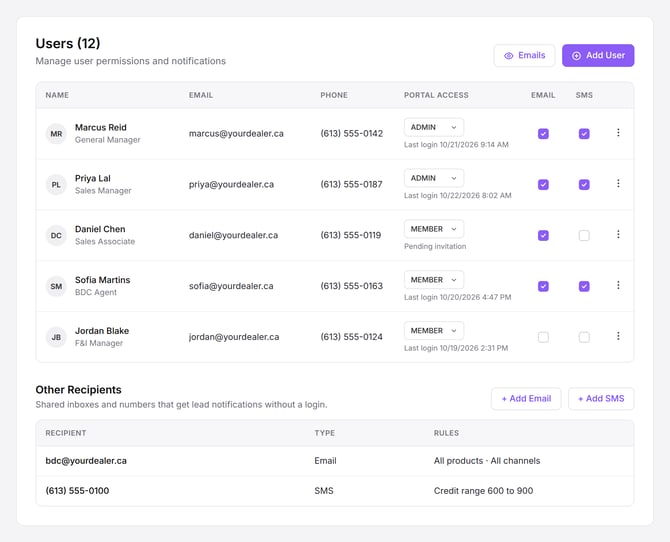
Who can make changes: Company admins can add, edit and remove users and notifications. Team members with Member access can view the Users page but can’t make changes.
Add a new team member
- Go to Settings › Users and click Add User.
- Choose their Portal Access: Admin or Member.
- Enter their email address and phone number.
- Under Send Notifications, tick Email, SMS or both if they should receive new leads.
- Add their name and position, then click Add User.
- Click Send Invite. They’ll get an email invitation to sign in.
Until they accept, their row shows Pending invitation.
See who gets your leads
The Email and SMS columns show at a glance who receives lead notifications.
- To turn a notification on, tick the box. A form opens so you can set it up.
- To turn one off, untick the box and confirm.
Set lead notification rules
You can control which leads each person receives.
- Click the ⋮ menu on their row and choose Email Notifications or SMS Notifications.
- Click + Add Email or + Add SMS, or edit an existing one.
- For email, you can set a Preferred Sender and a Subject Override.
- Open Advanced Delivery Rules to limit leads by:
- Product
- Company channel
- Credit range (minimum and maximum)
- Skipping leads with no credit file
Each person can have more than one email or SMS notification, each with its own rules. For example, you could send subprime leads to your F&I manager and prime leads to the sales floor.
Send leads to a shared inbox or BDC line
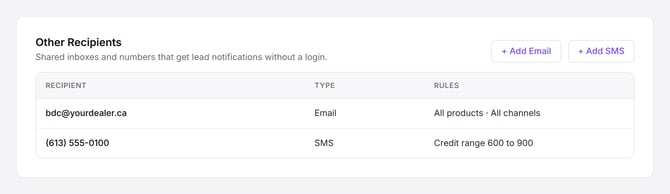
Use Other Recipients for addresses or numbers that should get leads without a portal login.
- Scroll to Other Recipients at the bottom of Settings › Users.
- Click + Add Email or + Add SMS.
- Enter the address or number and set any delivery rules.
Control access to sensitive data
- Click the ⋮ menu on a user’s row and choose Portal Access.
- Under Advanced, choose whether they can:
- View Credit Data
- View Trade Data
- View Report Stats
Remove a team member
- Click the ⋮ menu on their row and choose Remove.
- Review the confirmation. It lists every lead notification that will be deleted with that person.
- Confirm to remove them.
Any shared notifications that matched that person move to Other Recipients, so your leads keep flowing.
If you have Member access
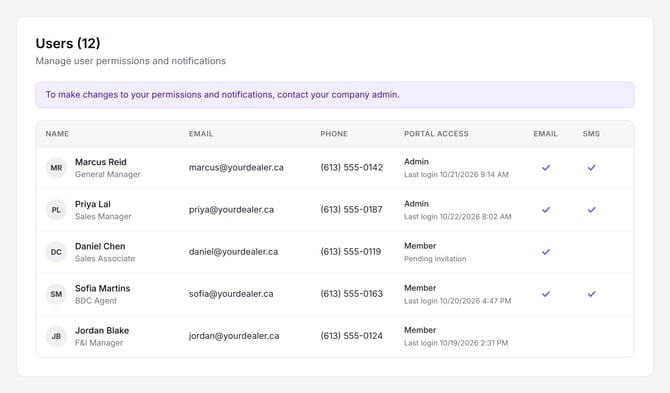
You can open Settings › Users to see your team and check whether you’re set up to receive leads by email or text. To change your permissions or notifications, contact your company admin.
Good to know
- Email addresses can’t be changed after a user is created, because the email is their sign-in. To change it, remove the user and add them again.
- Phone numbers must be 10 digits.
- Other Recipients are an address or number only. They have no name or profile.
- Changing your own access needs confirmation. If you step down from Admin, another admin will need to restore your access.
- Duplicates are blocked. If an email or phone number already receives those leads, you’ll see a message telling you who has it.
Frequently asked questions
Where did the Notifications tab go?
Lead notifications are now part of Settings › Users, next to each person’s portal access.
A salesperson says they aren’t getting leads. What should I check?
Find them on the Users page and check their Email and SMS boxes. If a box is ticked, open that notification and review its Advanced Delivery Rules to make sure the rules aren’t filtering out the leads they expect.
Can our sales@ inbox get leads without a login?
Yes. Add it under Other Recipients.
Will people be notified when I add them as a lead recipient?
Not yet. New users get a portal invitation, but there’s no separate notice when lead notifications are added.