
Why Use This Feature
Dealerships run campaigns across many channels such as Google Ads, Meta ads, email promotions, and SMS campaigns.
However, once a customer becomes a lead, it can be difficult to determine which campaign brought them to your dealership.
UTM Campaign Tracking solves this problem by capturing campaign parameters from marketing links and displaying performance directly inside the AVA Portal.
With this feature, you can see how many leads, credit applications, trade submissions, test drives, and sales are generated from each campaign.
This makes it easier to identify which marketing efforts produce real buyers.
Who Should Use This
This workflow is recommended for:
- Marketing Managers
- General Managers
- BDC Managers
- Sales Managers
Anyone responsible for marketing performance or lead management can use this feature to understand campaign results.
Note: Access to the UTM Campaigns page requires the Marketing permission to be enabled on your user role. Contact your account administrator if you do not see this section in your portal.
Before You Start
Make sure you:
- Add UTM parameters to your marketing links
- Use those links in your ads, emails, or SMS campaigns
- Have access to the Marketing section of the AVA Portal
Workflow
Step 1 — Add UTM Parameters to Your Campaign Links
.png?width=670&height=334&name=Screenshot%202026-03-03%20at%203.55.55%20PM%20(1).png)
When creating marketing links for ads, emails, or campaigns, include UTM parameters such as:
utm_source— the platform or channel (e.g. google, meta, email)utm_medium— the marketing medium (e.g. cpc, sms, banner)utm_campaign— the campaign name (e.g. summer-sale-2025)
These parameters allow AVA to identify where the lead originated.
You can also use the optional utm_content and utm_term parameters to track specific ad variations or keyword targets, giving you even more granular reporting inside the AVA Portal.
Step 2 — Use the Tagged Links in Your Marketing Campaigns

Place the UTM-tagged links in your marketing channels, such as:
- Google Ads campaigns
- Meta or social media ads
- Email campaigns
- SMS outreach
- QR codes or promotional materials
When customers click these links, the campaign data is captured automatically.
Tip: If you are using Google Ads, enable auto-tagging or use the Google URL Builder to generate compliant UTM links. For Meta Ads, use Meta's URL Parameters field in your ad set settings.
Step 3 — Open the UTM Campaigns Page in the AVA Portal
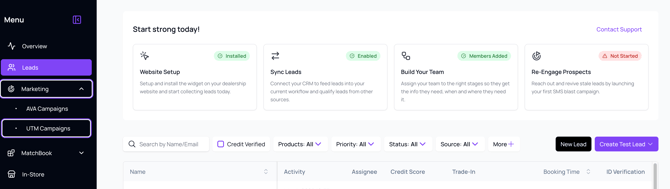
Log into the AVA Portal and navigate to:
Marketing → UTM Campaigns
This page displays all campaigns associated with your dealership account.
Step 4 — Review Campaign Performance

Use the dashboard to see how each campaign performs.
You will be able to view:
- Total leads generated
- Credit applications submitted
- Trade submissions
- Test drive bookings
- Units sold from each campaign
Leaderboards highlight your top campaigns and traffic sources for quick insights.
Step 5 — Drill Down Into Campaign Leads

Click on any campaign name to view the Leads list filtered by that campaign.
This allows your team to see exactly which customers came from the campaign and prioritize follow-up.
What You Can Expect
Using UTM Campaign Tracking in the AVA Portal helps your team:
- Identify which marketing campaigns generate real buyers
- Connect marketing performance to dealership outcomes
- Make faster decisions about where to allocate marketing budget
Pro Tips
- Create separate UTM campaign names for each marketing channel to compare results more easily.
- Use a consistent UTM naming convention across your team (e.g., all lowercase, hyphens instead of spaces) to ensure campaign data groups correctly in the AVA Portal.
- Use UTM links in SMS campaigns or QR codes to track offline promotions and showroom traffic.
- Use a URL shortener (such as Bitly) when embedding UTM-tagged links in SMS messages or printed QR codes — long URLs can appear broken in text messages and are harder to encode into QR codes reliably.
Need Help?
💬 Chat inside your portal
📧 support@autocorp.ai
📞 1 (877) 255-8627