
This guide explains how to add the AVA Portal as a home screen shortcut on your iPhone, iPad, or Android device. Adding the shortcut gives you fast, one-tap access to the portal — no browser navigation required.
The site is fully responsive in mobile format, and with the following steps can be set as a shortcut on your iPhone/iPad or Android device for quick easy access.
Creating a Mobile Shortcut — iOS:
-
Open Safari. *Other browsers, such as Chrome, won't work for this.
-
Navigate to https://portal.autocorp.ai/.
-
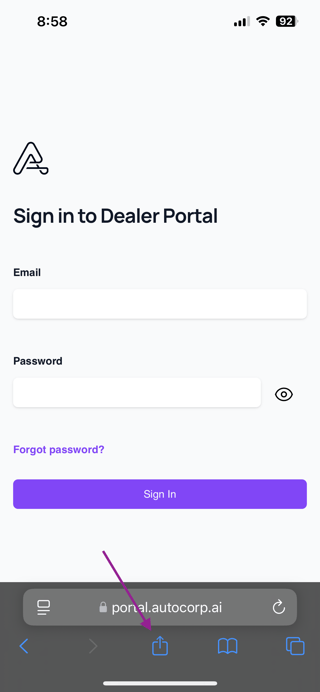
Tap the Share button at the bottom of the screen. It looks like a box with an arrow pointing upward.

-
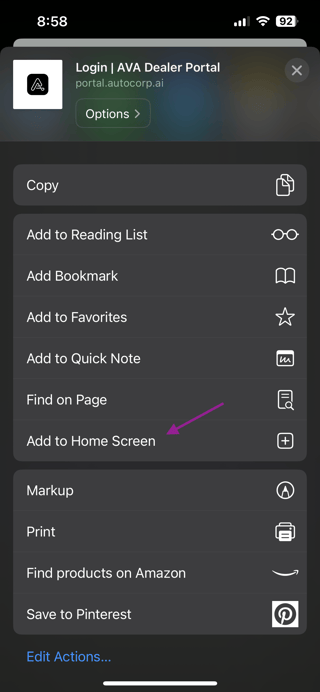
In the list of options that appear, scroll down until you see Add to Home Screen. Tap this. The Add to Home Screen dialog box will appear.

-
Choose a name for the website shortcut on your home screen. You'll see the URL so you can confirm it.
-
Tap Add in the top-right corner when you're done.

-
Open Safari. *Other browsers, such as Chrome, won't work for this.
Navigate to https://portal.autocorp.ai/.
Tap the Share button on the bottom of the page. It looks like a square with an arrow pointing out of the top.
In the list of options that appear, scroll down until you see Add to Home Screen. Tap this. The Add to Home Screen dialog box will appear.
Choose a name for the website shortcut on your home screen. You'll see the URL so you can confirm it.
Tap Add in the top-right corner when you're done.
After tapping Add, you will be taken directly to where the shortcut icon appears on your iPhone or iPad's home screen.
Now just tap the new "app" or shortcut on your home screen (it will have the Autocorp Logo), and it will open the website in its own navigation window, independent of what you have open in Safari.
Note: To remove the shortcut at any time, press and hold its icon on your home screen, then select Remove Bookmark or Delete — the same way you would remove any app.
Creating Mobile Shortcut Android:
-
Open Chrome.
-
Navigate to https://portal.autocorp.ai/.
-
Tap the menu icon (3 dots in upper right-hand corner) and tap Add to home screen.
-
Choose a name for the website shortcut, then tap Add. Chrome will add the shortcut to your home screen. Tap the new icon anytime to open the AVA Portal in its own browser window.
Need help creating a shortcut?
Reach out to us at support@autocorp.ai for assistance or for any further questions, we are always happy to help!