---
title: How to Use AVA Portal as a Mobile App for Faster Lead Management
description: Learn how to add the AVA Portal to your phone’s home screen so you can access leads, credit applications, and dealership activity instantly from your mobile device.
---
[Skip to content](https://getautocorp.com/en-ca/help/how-to-use-ava-portal-as-a-mobile-app#main-content)
English - Canada
Show submenu for translations

Open main navigation
Close main navigation
- English - Canada
Show submenu for translations
- [Request Support](https://getautocorp.com/request-support)
[Request Support](https://getautocorp.com/request-support?hsLang=en-ca)
How can we help you?
- There are no suggestions because the search field is empty.
1. [AVA Help Centre](https://getautocorp.com/en-ca/help?hsLang=en-ca)
2. [Guides, Tips & Strategies](https://getautocorp.com/en-ca/help/guides-tips-strategies?hsLang=en-ca)
October 16, 2026
# How to Use AVA Portal as a Mobile App for Faster Lead Management
## Learn how to add the AVA Portal to your phone’s home screen so you can access leads, credit applications, and dealership activity instantly from your mobile device.
## **Why use this feature**
Dealership teams are constantly moving between the showroom, service lane, and lot — making desktop logins impractical when new leads arrive. Adding the AVA Portal to your mobile home screen gives your team one-tap access to leads and customer applications from anywhere on the lot. Staff can tap the AVA icon instead of opening a browser and navigating to the portal each time. Follow the five steps below to set it up on iPhone or Android in under two minutes.
---
### **Who Should Use This**
This workflow is recommended for:
- Sales Managers
- BDC Managers and Agents
- Sales Representatives
- Dealer Principals
Anyone who monitors leads or applications during the day will benefit from faster mobile access.
---
## **Before you start**
Make sure you:
- Have access to your AVA Portal login
- Are using a smartphone (iPhone or Android)
- Open the portal in your phone’s web browser (Safari or Chrome)
---
## **How do you add the AVA Portal to your mobile home screen?**
### Step 1 — Open the AVA Portal
Open Safari (iPhone) or Chrome (Android) and navigate to your dealership’s AVA Portal URL.
Log in using your normal AVA credentials.
---
### Step 2 — Open the browser menu
**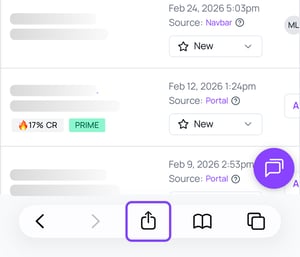**
Once the portal is open, tap the **Share or Options icon** in your browser.
On **iPhone (Safari)**, this is the square icon with an upward-pointing arrow (⬆) — typically at the bottom of the screen, though it may appear at the top depending on your iOS version and Safari settings.
On **Android (Chrome)**, this is the three-dot menu (⋮) in the top-right corner.
---
### Step 3 — Select “Add to Home Screen”
**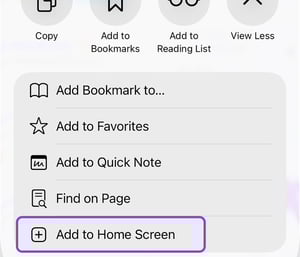**
From the menu options, tap **Add to Home Screen**.
This creates a shortcut that will appear on your phone like a mobile app.
---
### Step 4 — Confirm the shortcut
**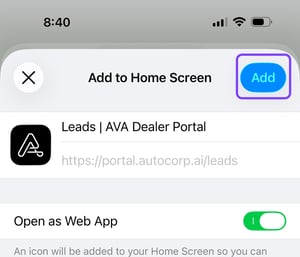**
Your phone will show a preview of the shortcut.
You can keep the name as **AVA Portal** or rename it if you prefer.
Tap **Add** to confirm.
---
### Step 5 — Launch AVA from your home screen
**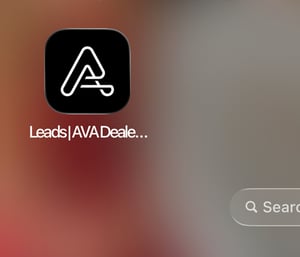**
You will now see an **AVA Portal icon on your phone’s home screen**.
Tapping the icon will immediately open the portal, allowing you to access leads and applications in seconds.
---
### **What You Can Expect**
Adding the AVA Portal to your home screen helps your team:
- Access leads and applications faster
- Monitor activity without returning to a desktop
- Stay connected to customer submissions throughout the day
---
### **Pro Tips**
- Encourage sales and BDC staff to add AVA to their phones so they can respond to leads quickly.
- Managers can check lead activity throughout the day without logging in from a desktop.
---
#### **Need Help?**
💬 Chat inside your portal
📧 support@autocorp.ai
📞 1 (877) 255-8627
- [Getting Started & Account Setup](https://getautocorp.com/en-ca/help/getting-started-account-setup?hsLang=en-ca)
- [Website Setup & Installation](https://getautocorp.com/en-ca/help/website-setup-installation?hsLang=en-ca)
- [Leads & Integrations](https://getautocorp.com/en-ca/help/leads-integrations?hsLang=en-ca)
- [Campaigns & Marketing](https://getautocorp.com/en-ca/help/campaigns-marketing?hsLang=en-ca)
- [AVA™ Credit](https://getautocorp.com/en-ca/help/ava-credit?hsLang=en-ca#main-content)
- [TransUnion](https://getautocorp.com/en-ca/help/ava-credit?hsLang=en-ca#transunion)
- [AVA™ ID](https://getautocorp.com/en-ca/help/ava-id?hsLang=en-ca)
- [AVA™ VeriDrive](https://getautocorp.com/en-ca/help/ava-veridrive?hsLang=en-ca)
- [AVA™ Trade](https://getautocorp.com/en-ca/help/ava-trade?hsLang=en-ca)
- [AVA™ MatchBook](https://getautocorp.com/en-ca/help/ava-matchbook?hsLang=en-ca)
- [Guides, Tips & Strategies](https://getautocorp.com/en-ca/help/guides-tips-strategies?hsLang=en-ca)
- [Billing & Invoicing](https://getautocorp.com/en-ca/help/billing-invoicing?hsLang=en-ca)
[](https://cdn.prod.website-files.com/668415686f0a8cf761c4b334/66844e747562f707f0c5499d_2023-Autocorp-TM-Logo-WH-Transparent%404x.png)
[mailto:email@email.com](mailto:email@email.com)
Copyright © 2025, Autocorp.ai