---
title: How to Enable Lead Status and Assignment in AVA® Co-Driver
description: This guide explains how to turn on lead status and assignee controls in AVA® Co-Driver, and how your team uses them once they are live.
---
[Skip to content](https://getautocorp.com/en-ca/help/how-to-enable-lead-status-and-assignment-in-ava-co-driver#main-content)
English - Canada
Show submenu for translations

Open main navigation
Close main navigation
- English - Canada
Show submenu for translations
- [Request Support](https://getautocorp.com/request-support)
[Request Support](https://getautocorp.com/request-support?hsLang=en-ca)
How can we help you?
- There are no suggestions because the search field is empty.
1. [AVA Help Centre](https://getautocorp.com/en-ca/help?hsLang=en-ca)
2. [Leads & Integrations](https://getautocorp.com/en-ca/help/leads-integrations?hsLang=en-ca)
September 24, 2026
# How to Enable Lead Status and Assignment in AVA® Co-Driver
## This guide explains how to turn on lead status and assignee controls in AVA® Co-Driver, and how your team uses them once they are live.
### **Overview**
**What this article covers:** How to enable lead status and assignee controls in the AVA® Co-Driver browser extension, verify the setup, and use the controls from any browser tab.
AVA® Co-Driver lets you update a lead’s status and assign it to an agent without leaving the screen you are working in — your CRM, your desking platform, or any other browser tab.
The controls are off by default and are enabled per dealership. Dealerships that use AVA® as their lead management system can switch them on. Dealerships that prefer to manage leads elsewhere can leave them off.
### **Why This Setup Matters**
- Your team stops tabbing back to the AVA® Portal to make a one-field change.
- Status and assignee stay in sync in both directions, so the Portal and Co-Driver never disagree.
- Status options are identical to the Portal, so there is no second vocabulary for your team to learn.
- The setting is yours to control — nothing changes for your store until an admin turns it on.
### **Requirements**
Before starting, ensure you have:
- Company administrator access to the AVA® Portal.
- AVA® Co-Driver installed on Google Chrome or Microsoft Edge. Verify you are running the latest version by checking for updates in your browser's extension manager.
- Agreement internally on how your store will use each status, since the change applies to every user at the dealership.
### **Setup Instructions**
**Step 1 — Open your account settings**
In the AVA® Portal, go to Settings → Account → Leads.
**Step 2 — Enable Show lead controls in Co-Driver — "Show lead status and assignee controls in the AVA Co-Driver extension."**
.jpeg?width=670&height=283&name=6a8dab9a62221e23326285a1_Untitled%20design%20(4).jpeg)
**Step 3 — Save your change**
The setting applies to the whole dealership. Every user at your store, administrators included, gets the controls.
**Step 4 — Refresh Co-Driver**
Close and reopen the AVA® Co-Driver extension so it picks up the new setting. If the controls do not appear after reopening, do a full browser refresh (Ctrl+Shift+R on Windows or Cmd+Shift+R on Mac) and check again. If they still do not appear, try removing and reinstalling the AVA® Co-Driver extension, then repeat Steps 1–4.
### **Confirm Setup**
After setup, users should see:
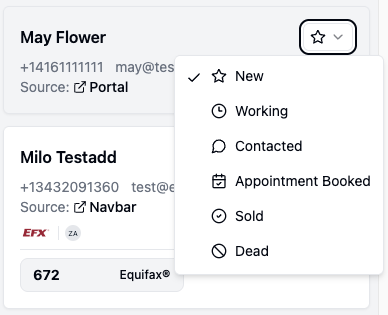
- A status icon on each card in the Co-Driver leads list.
- Assignee avatars on any lead that already has an owner.
- An AVA® Portal card on the lead profile containing a Status dropdown and an Assign picker.
### **Using the Controls**
Statuses match the AVA® Portal exactly:
- New, Working, Contacted, Appointment Booked, Sold, Dead
Change a status or assignee in Co-Driver and it updates in the Portal. Change it in the Portal and it updates in Co-Driver. There is no sync delay to wait out and no version to reconcile.
### **If Your Store Has AVA® Drive**
The AVA® Portal card also shows the lead’s test drive appointment state. This appears whether or not the CRM controls toggle is on.
- **One appointment booked** — Shows the booking date and a View Details link.
- **More than one appointment** — Shows a View All link.
- **No appointment yet** — Shows a Drive Link you can copy, pre-filled for that lead.
### **Best Practices**
- Decide what each status means at your store before you switch the toggle on. The value of the field is consistency, not the field itself.
- Assign leads as you work them rather than in a batch at the end of the day — the avatars in the leads list are only useful if they are current.
- If your store manages leads in another CRM and treats AVA® as a tool rather than a system of record, leave the toggle off.
### **Need Help?**
- **Live chat:** Available inside your AVA® Portal
- **Email:** support@autocorp.ai
- **Phone:** 1 (877) 255-8627
- [Getting Started & Account Setup](https://getautocorp.com/en-ca/help/getting-started-account-setup?hsLang=en-ca)
- [Website Setup & Installation](https://getautocorp.com/en-ca/help/website-setup-installation?hsLang=en-ca)
- [Leads & Integrations](https://getautocorp.com/en-ca/help/leads-integrations?hsLang=en-ca)
- [Campaigns & Marketing](https://getautocorp.com/en-ca/help/campaigns-marketing?hsLang=en-ca)
- [AVA™ Credit](https://getautocorp.com/en-ca/help/ava-credit?hsLang=en-ca#main-content)
- [TransUnion](https://getautocorp.com/en-ca/help/ava-credit?hsLang=en-ca#transunion)
- [AVA™ ID](https://getautocorp.com/en-ca/help/ava-id?hsLang=en-ca)
- [AVA™ VeriDrive](https://getautocorp.com/en-ca/help/ava-veridrive?hsLang=en-ca)
- [AVA™ Trade](https://getautocorp.com/en-ca/help/ava-trade?hsLang=en-ca)
- [AVA™ MatchBook](https://getautocorp.com/en-ca/help/ava-matchbook?hsLang=en-ca)
- [Guides, Tips & Strategies](https://getautocorp.com/en-ca/help/guides-tips-strategies?hsLang=en-ca)
- [Billing & Invoicing](https://getautocorp.com/en-ca/help/billing-invoicing?hsLang=en-ca)
[](https://cdn.prod.website-files.com/668415686f0a8cf761c4b334/66844e747562f707f0c5499d_2023-Autocorp-TM-Logo-WH-Transparent%404x.png)
[mailto:email@email.com](mailto:email@email.com)
Copyright © 2025, Autocorp.ai